Before you start
Download and install Harbor, open it, and choose Prepare Harbor.
Install Ubisoft Connect in Harbor
- Create a Ubisoft Connect bottle. Choose Bottles › New Bottle…, select Ubisoft Connect, keep the recommended renderer, DXMT, and choose Create.
- Install Ubisoft Connect. Choose Install Ubisoft Connect. Harbor downloads Ubisoft's own installer; finish it in its window. Accepting Ubisoft's terms there is your step.
- Sign in. Choose Open Ubisoft Connect and sign in. Harbor starts Connect with the settings that make Ubisoft's sign-in page work under Wine. Your password goes to Ubisoft; Harbor never sees or stores it.
- Install your game in Ubisoft Connect. Assassin's Creed III Remastered joins Harbor's library by itself; for other games, choose Programs › Find Programs in the bottle.
- Play from Harbor's library or from Ubisoft Connect.
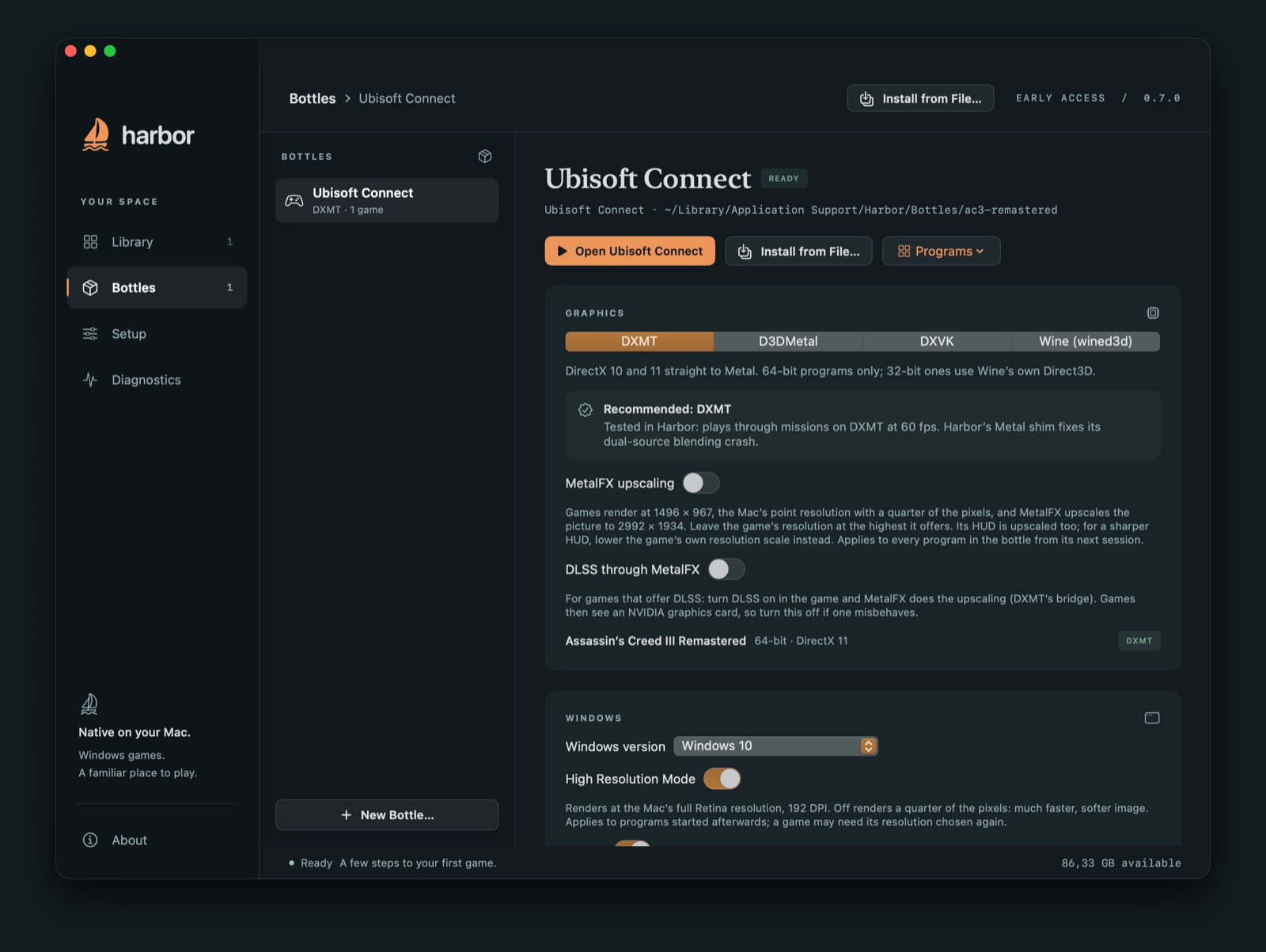
Which renderer to use
Keep a Ubisoft Connect bottle on DXMT or D3DMetal. Ubisoft Connect itself is a 32-bit program, so with those renderers it stays on Wine's own Direct3D, the setup Ubisoft's sign-in works with, while 64-bit games get the fast renderer. Avoid DXVK in this bottle: it would move Connect's browser too. How the renderers differ.
Assassin's Creed III Remastered
- Plays through missions at about 60 fps on DXMT at full Retina resolution on an M4 Pro. Harbor includes a fix for a crash when loading a save.
- If heavy scenes dip, lower the game's Resolution Modifier to about 85% or turn off screen-space reflections, or try MetalFX upscaling in the bottle's Graphics section.
- For the least input delay: VSync off in the game, no frame limit in Harbor, and Reduce frame queue on.
- Already have the game files elsewhere? In the bottle, choose Programs › Copy Existing AC III…; then in Ubisoft Connect, use Locate installed game and pick
C:\Games\Assassin's Creed III Remastered.
If something goes wrong
- Sign-in doesn't load: check the bottle isn't on DXVK, then open Ubisoft Connect again.
- A game isn't in the library: choose Programs › Find Programs, or Programs › Add Game… and pick its .exe.
- Still stuck: choose Diagnostics › Export diagnostics… and email the file to builtbyargo@proton.me with what you were doing.
Next: Steam on Mac · the EA app on Mac · FAQ