On this page: Portnaut can't be opened · Rosetta · Greyed-out buttons · Failed download · Black screen or crash · Missing DLL errors · Game not in the library · Launchers · Anti-cheat · Controllers · Slow games · After an update · Get help
“Portnaut” can't be opened
Portnaut isn't notarized by Apple yet, so macOS can't check it and won't open it the first time. Nothing is wrong with your download. Allow it once:
- Try to open Portnaut, then close the message.
- Open System Settings › Privacy & Security and scroll down to Security.
- Next to the message about Portnaut, choose Open Anyway, then confirm with your password or Touch ID.
To make sure the file is the one published, check your download's checksum.
Portnaut says Rosetta isn't installed
Wine, which runs the Windows programs, needs Apple's Rosetta on a Mac with Apple silicon. Portnaut itself doesn't. To install Rosetta, open Terminal and run:
softwareupdate --install-rosetta
Accept Apple's licence when Terminal asks, then choose Prepare Portnaut again.
Install from File and other buttons are greyed out
Portnaut hasn't been prepared yet. Choose Prepare Portnaut in the Library; it downloads Wine and the renderers once. Until then, Install from File, new bottles and launching games stay unavailable. Some buttons are also greyed out while a session runs: stop the session first to switch renderer or take a snapshot.
A download “failed its integrity check”
Portnaut checks every download against its published SHA-256 checksum before installing it. When a file doesn't match, often because the download was interrupted, Portnaut installs nothing. It's safe to retry. If it keeps failing, send diagnostics.
A game shows a black screen or crashes at start
Most of the time the renderer is the cause. Try these in order:
- Try the other recommended renderer. Stop the session, then choose another renderer in the bottle's Graphics section. To keep the working setup untouched, try it in a second bottle instead. Which renderer suits which game.
- Check the game's bitness. DXMT and D3DMetal cover 64-bit games only. For 32-bit DirectX 9 to 11 games, DXVK is the fast option.
- Turn on Advertise AVX instructions in the bottle's Performance & input lag section. Some newer games refuse to start without AVX. Rosetta translates those instructions but only reports them when asked.
- If the game hangs, turn off MSync in the bottle's Windows section to rule it out, and turn it back on if that doesn't help.
Before changing settings in a bottle with games you care about, take a snapshot: Snapshots & backups › Take Snapshot… in the bottle.
A program says a DLL is missing
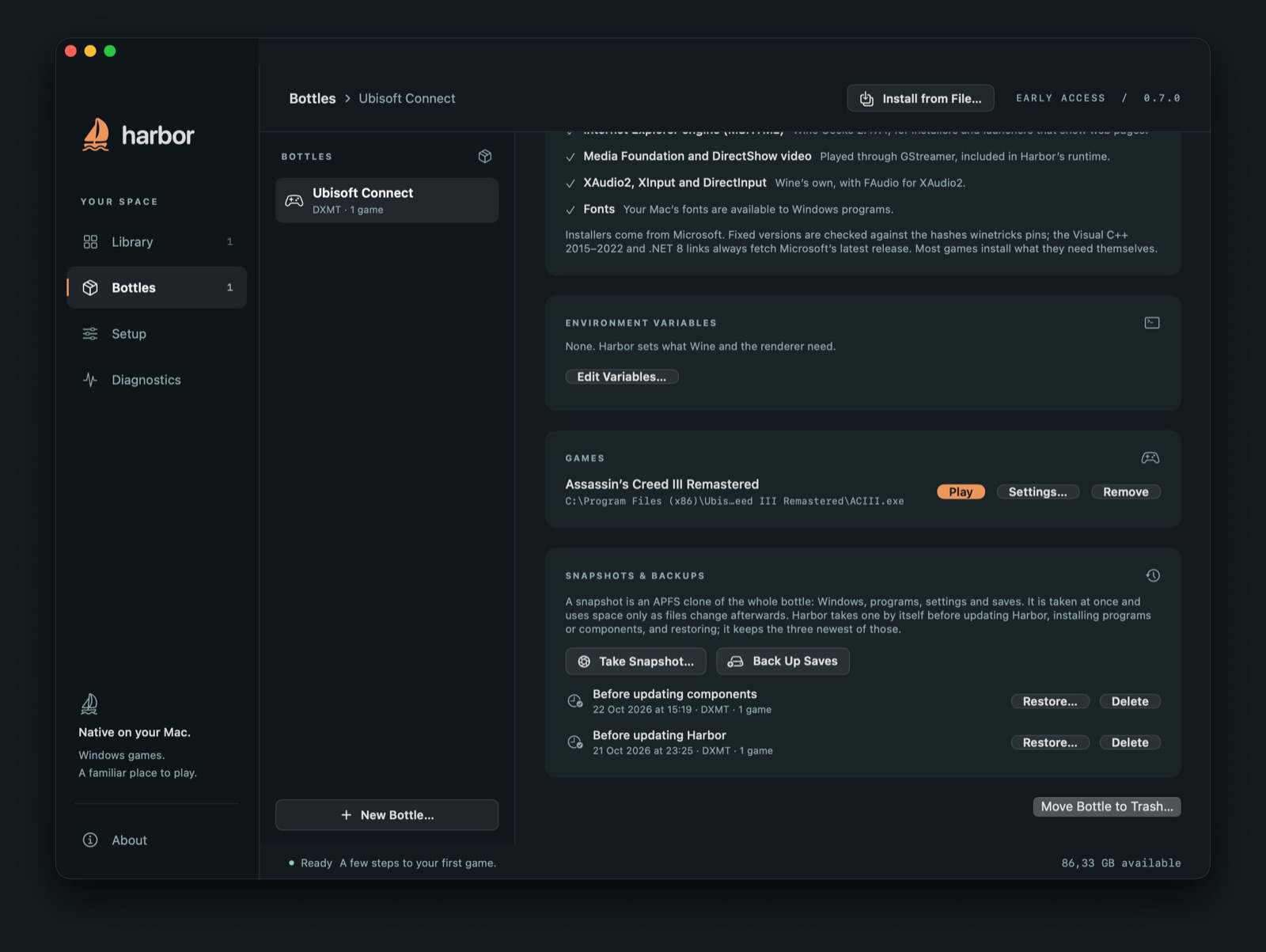
Messages about files such as MSVCP140.dll, MSVCR120.dll or d3dx9_43.dll, or about .NET, mean the program expects parts that Windows PCs usually have installed. Add them from the bottle's Windows components section:
- Visual C++ 2015–2022 for
msvcp140andvcruntime140, Visual C++ 2013 formsvcp120andmsvcr120, and Visual C++ 2010 formsvcp100andmsvcr100; - DirectX 9–11 helper libraries for
d3dx9,d3dx10,d3dx11andd3dcompilerfiles; - .NET Desktop Runtime 8 for tools built on .NET 8, such as many mod managers. Older .NET Framework programs use Wine Mono, which is built in.
Portnaut downloads these from Microsoft and asks you to accept Microsoft's terms first.
An installed game isn't in the library
- In the bottle, choose Programs › Find Programs. Portnaut lists the programs installed in the bottle, so you can add the game.
- If it isn't listed, choose Programs › Add Game… and pick the game's .exe inside the bottle's Windows drive.
- If Portnaut says a game's Windows program could not be found, the game has been moved or uninstalled. Reinstall it through its launcher, or add it again with Add Game….
Steam, the EA app or Ubisoft Connect won't open or sign in
- Ubisoft Connect sign-in doesn't load: check the bottle isn't on DXVK, then open Ubisoft Connect again. Ubisoft Connect guide.
- The EA app doesn't open or a game crashes at start: the EA app is the launcher Portnaut has tested least. Try the other recommended renderer in a second bottle, or turn on Advertise AVX instructions. EA app guide.
- Steam: a Steam bottle starts on D3DMetal. If Steam itself misbehaves after a component update, roll back (see after an update). Steam guide.
If a launcher worked before and stopped, restore a snapshot from before the problem started.
An online game with anti-cheat won't start
Games with kernel-level anti-cheat, such as many competitive shooters, Battlefield and EA Sports FC, don't run under Wine, whatever the settings. No fix in Portnaut changes that. A cloud gaming service may offer them. More about cloud gaming.
A controller isn't detected
- Connect the controller to the Mac first, in System Settings › Bluetooth or with a cable. It then shows in the bottle's Controllers section.
- Keep Recognise controllers with SDL on. SDL knows the layouts of Xbox, PlayStation, Switch and most other controllers.
- Most games expect an Xbox controller, so keep Show controllers as Xbox controllers (XInput) on. Turn it off for games that want to see each controller as it is.
- Choose Test in Windows… to check that Windows sees the controller.
These settings apply when the bottle's next session starts. Steam games can also use Steam Input on top.
A game runs slowly
- Measure first: turn on Show Metal performance HUD in the bottle's Performance & input lag section to see the frame rate in the game.
- Compare renderers: Portnaut records the frame rate of every session. The game's page in the Library shows the results per renderer, and suggests one you haven't tried yet.
- Render fewer pixels: with High Resolution Mode off, games render a quarter of the pixels: much faster, with a softer image. In DXMT bottles, MetalFX upscaling keeps that speed and upscales the picture to full Retina detail.
- Lower the input lag: turn off VSync in the game, leave the frame rate limit off and turn on Reduce frame queue.
A game stopped working after an update
- After a component update: open Check for Component Updates… in the Portnaut menu and choose Roll Back… to return to the previous Wine and renderers.
- After a change in the bottle: in the bottle's Snapshots & backups, choose Restore… next to a snapshot from before the problem. Portnaut takes snapshots automatically before updates.
- Saves: Back Up Saves copies a bottle's saves to
~/Documents/Portnaut Backups, and Restore… puts them back.
Still stuck? Send diagnostics
- Open Diagnostics in Portnaut's sidebar and choose Export diagnostics….
- Read through the report before you send it. Logs stay on your Mac until you do.
- Email it to builtbyargo@proton.me, with the game, the bottle's renderer and what happened.
Next: DXMT vs D3DMetal vs DXVK · Install Wine on a Mac · FAQ